The Anchors panel lists every anchor on the active glyph. Anchors are positions used by OpenType layout features and by composite-glyph attachment, where a mark or a continuation glyph needs to land at a known point on its base.
Anchors drive these features:
•Mark-to-Base, Mark-to-Mark, and Mark-to-Ligature lookups — stack a mark glyph on its base.
•Cursive Attachment lookups — chain glyphs through Entry and Exit anchors.
•Caret positions in ligatures — define where a text client can break the ligature for selection or cursor placement.
•Auto Attach and Complete Composites — used when generating composite glyphs from anchored bases and marks.
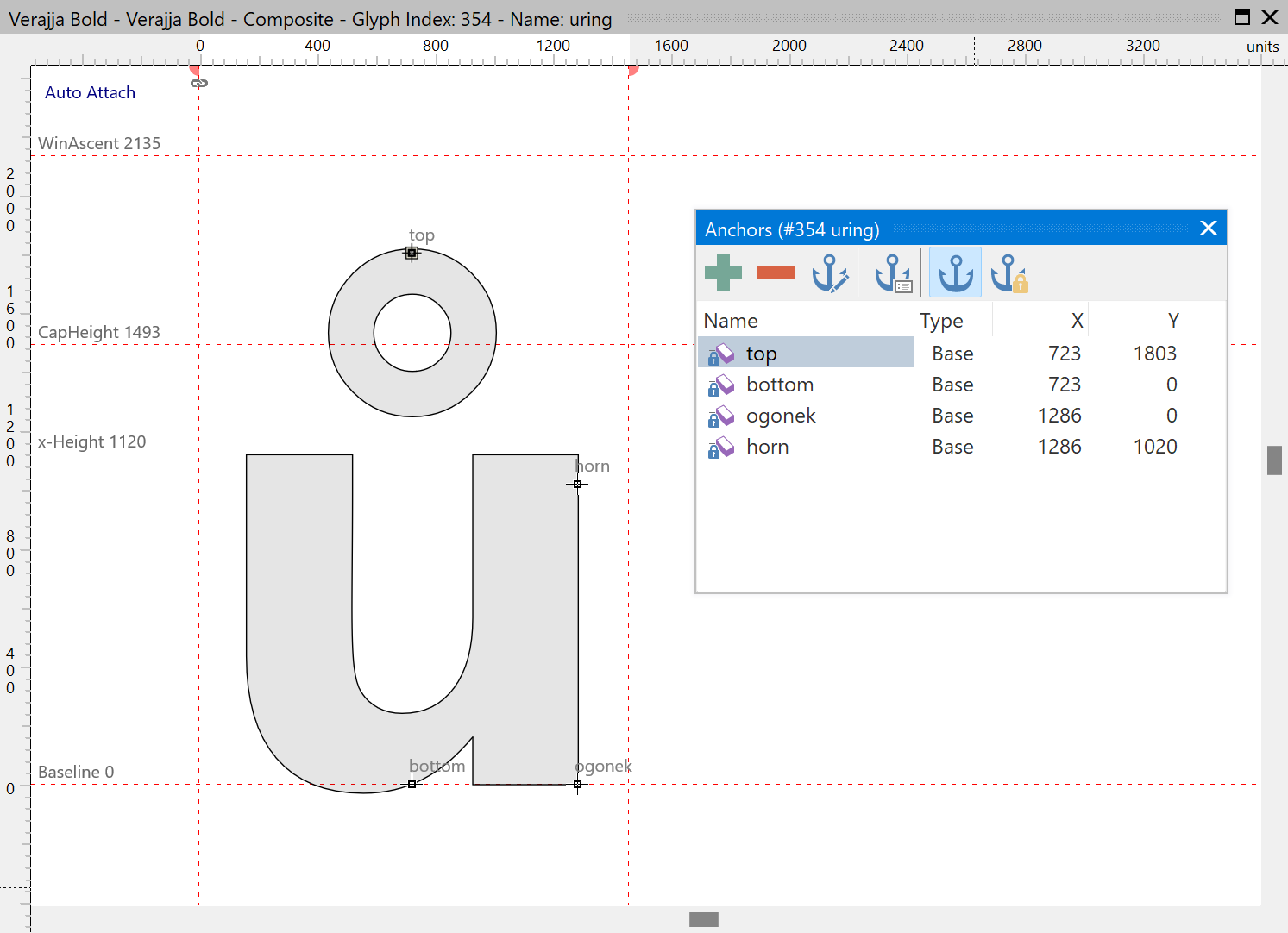
An anchor in active use by an OpenType lookup carries an arrow icon. An anchor inherited from another glyph through Auto Attach carries a lock icon — inherited anchors cannot be moved or deleted directly.
Move, Add, Delete, Edit
Drag an anchor in the glyph editor to reposition it. Hold Shift for axis-locked movement; hold Alt to bypass snap-to-grid and snap-to-guidelines.
To add an anchor at a specific position, right-click in the glyph editor and choose Add Anchor. The panel toolbar adds a Delete button for the selected anchor and an Edit button (or double-click an entry) to reposition it numerically.
Reorder and Sort
The anchor list can be reordered manually or sorted alphabetically through the panel toolbar.
Create Guidelines from an Anchor
Press G while an anchor is selected in the glyph editor to drop a horizontal and a vertical guideline through it.
Background Layer Anchors
A background layer carries its own anchors, separate from those on the master. Background-layer anchors are listed under the background row in the Masters and Layers panel and are read-only in the glyph editor; swap with the background to edit them.
Anchor Manager
Open the Anchor Manager from the panel toolbar to add, delete, or modify the anchor classes the font uses.
Tip: use Complete Composites Anchor Based to generate composite glyphs from anchored bases and marks automatically.