You can copy and paste many different parts of glyphs.
Select one or more glyphs in the Font panel (Ctrl+click adds to the selection) and copy them to the clipboard. You can paste them back into the same font at a different selection of cells, or into a different font.
The pasted glyphs land on whichever cells you have selected. If you've selected a single starting cell and the clipboard holds several glyphs, the paste spreads across consecutive cells starting from that selection — so copying A through Z and pasting onto cell 100 fills cells 100 through 125. The destination cells keep their names, Unicode code points, and OpenType type (base, ligature, mark); the source's outline, background, metrics, anchors, colour outlines, helper layers, path decorations, designer note, tag colour, and export flag replace the destination's. This applies whether you paste back into the same font or into a different one.
To carry glyph names and code points across as well (useful when importing missing glyphs from another font), or to restrict the paste to just the outline or just the metrics, use Edit → Paste Special instead. The dialog lets you pick exactly which parts of the source glyphs travel and how the destination is chosen — into the current selection, into glyphs with matching names, or as new glyphs at the end of the font.
You can also copy part of a glyph's outline from within the glyph editor and paste it back into the same or another glyph editor. The outline data can also be pasted into vector-based software such as Adobe Illustrator.
See: Import Vector Image.
The Paste Special command lets you control exactly which parts of the copied glyph data are pasted, and how the destination cells are chosen. It overrides the regular-paste behaviour described above, so the same dialog applies whether the clipboard came from the same font or a different one.
Destination chooses where the pasted glyphs land:
•The current glyph selection — select the same number of glyphs you copied prior to the paste action, or select a single glyph to start the paste at that cell. If you copied a single glyph, it is pasted into every selected destination glyph.
•Glyphs with the same name — match by name, optionally creating new glyphs for names that don't yet exist in the destination.
•Append as new glyphs — add all pasted glyphs at the end of the font, optionally skipping names that already exist.
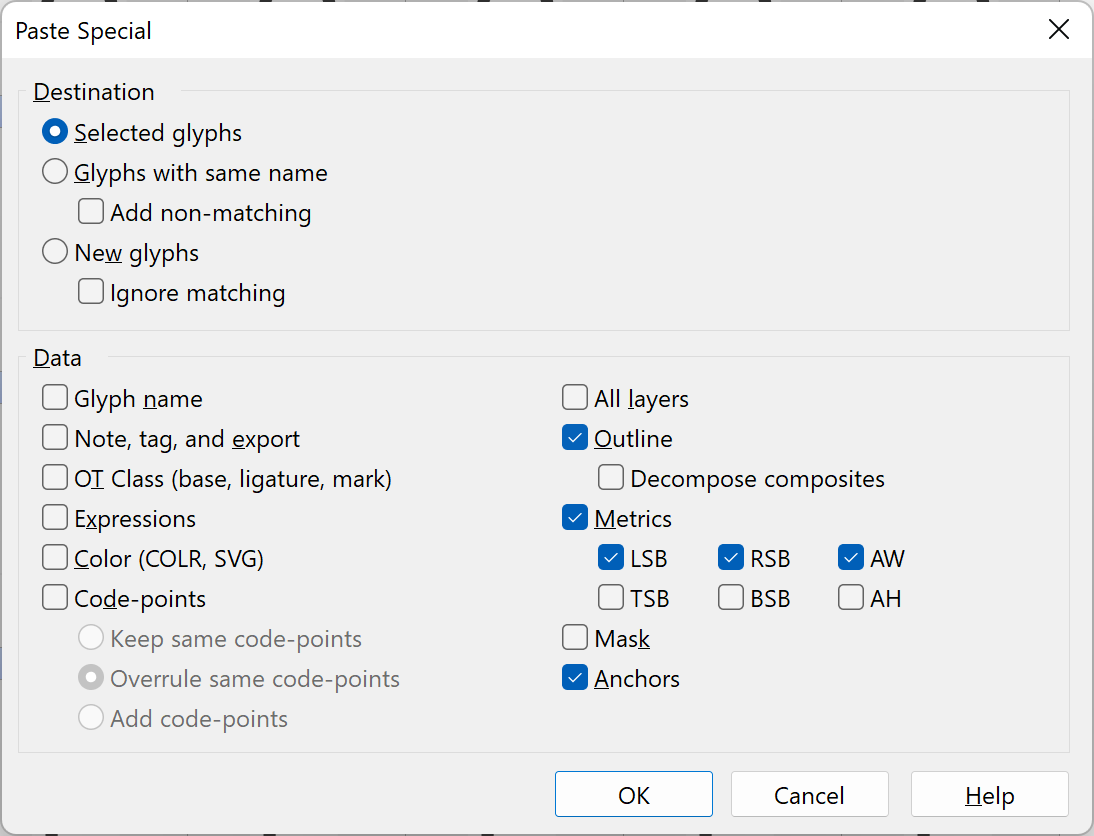
Data chooses which parts of each glyph are pasted:
•Glyph Name pastes the glyph names from the source.
•Metrics covers the left, right, top, and bottom side-bearings plus the Advance Width of each glyph.
•Code-points pastes the Unicode mappings. Keep same code-points adds the source mappings to the pasted glyphs. Overrule same code-points reassigns mappings that already exist elsewhere in the destination to the pasted glyphs. Add code-points adds all mappings and reassigns any that conflict.
•Anchors includes all available anchor points, which can be used by OpenType layout features.
•Background includes each glyph's background layer along with its own outline, metrics, and anchors.
•Helper Layers includes all helper layers attached to the source masters.
•Path Decorations includes corner and cap decorations attached to outline points.
Note: when copying composite glyphs or color outlines between fonts, component references are resolved by glyph name. This applies both to composites on the main layer and to composites that live inside a helper layer. If a referenced glyph isn't present in the destination font and isn't created by the paste itself, that reference is dropped.