True single line OpenType fonts don’t exist, as OpenType fonts are based on the principle of closed contours. Basically the area inside a contour (or between two contours) is filled. In general these fonts are not designed for engraving or laser cutting, but with some tricks you can actually make fonts that might work for this specific task.
To help making such fonts, FontCreator allows you to design your glyphs with open contours. FontCreator will show open contours as single stroke outlines.
Do follow these steps to get started with open contours:
Open a Closed Contour
Open a contour within the Glyph panel: select a contour, then right-click to select Toggle Open Contour(s). See Contours for more information.
Set Font Export Setting for Open Contours
As soon as the font contains at least one open contour, the Font Export Settings dialog shows the Open Contours option. Set Open Contours to either Single Stroke or Double Stroke. The Double Stroke option is compatible with most engraving software, but the Single Stroke option is more efficient. We recommend to test which option works best in your situation.
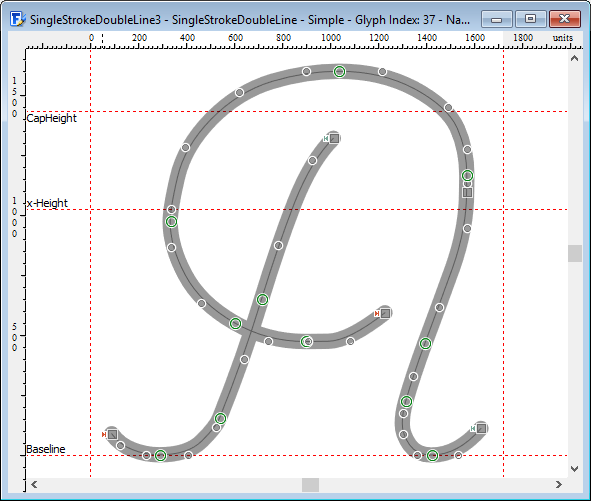
Some contour related features will not work well with open contours. For example Optimize Contours will likely change the index of the first point, so either avoid it, or manually correct the first point. Right-click an on-curve point and then select First Point.
Save Glyphs as SVG Files
Engraving, plotting and cutting software often imports SVG files. Select one or more glyphs and choose Tools > Save as SVG. A single glyph is saved to the file you choose. For several glyphs you choose a folder, and each glyph is saved as its own SVG file, named after the glyph. Open contours are saved as open paths, so the software can follow each line from its start to its end.
Note: The paths are saved as filled shapes without a stroke. A web browser therefore shows an open path as a thin shape, or not at all for a straight line, but software that follows the path itself is not affected.
OpenType SVG with Open Contours
If the font is meant for software that supports OpenType SVG fonts, colorize your glyphs and export the font with SVG color information. In the Font Export Settings dialog, set Color to SVG without color palettes, SVG with color palettes, or Both COLR and SVG, and set Open Contours to Single Stroke or Double Stroke. Open contours are then written to the SVG data as open paths drawn with a stroke, with rounded ends and corners. The stroke width is 1/32 of the units per em, for example 31 units in a font with 1000 units per em.
Only glyphs with color layers get SVG data, so colorize every glyph you want to include. The font also contains the regular outlines, exported as set under Open Contours. Few engraving and cutting programs read OpenType SVG fonts, so test the font in your software first.
Tip: Open contours (and font export settings) will be saved within the font project file, so it is the preferred way to always work with font project files.
See also: