You can customize the way fonts are loaded, saved and shown with the Options dialog (Select Options from the Tools menu).
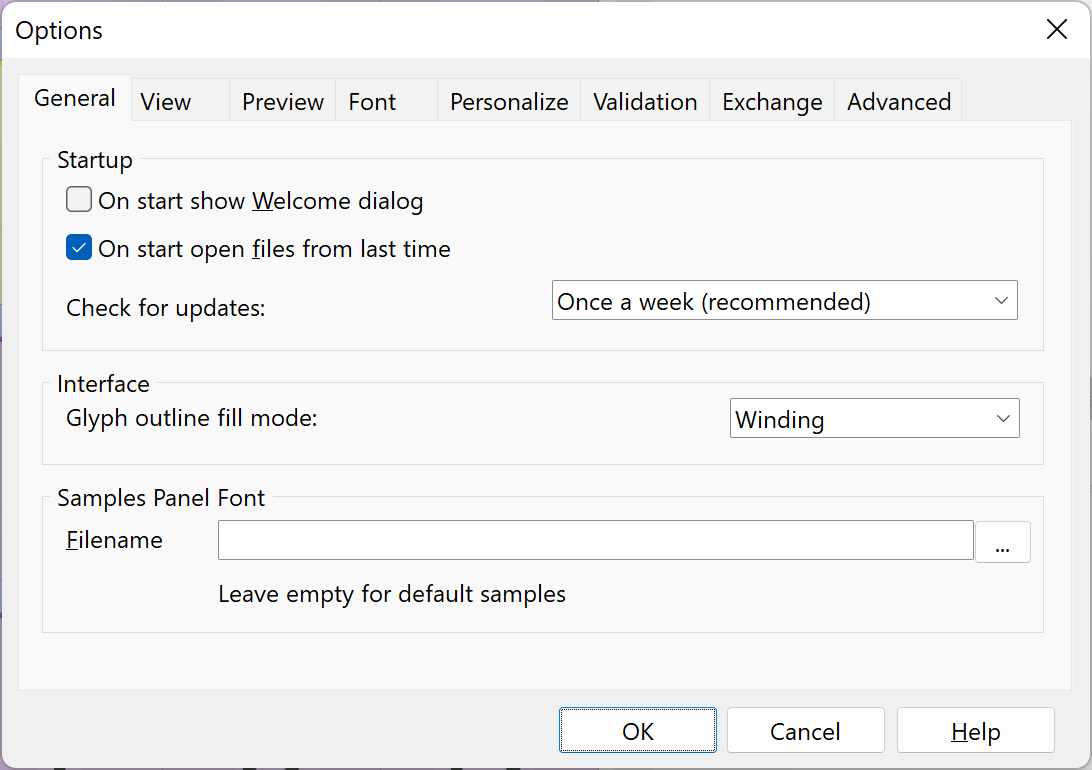
Use the fields on the General page when you want to change the startup and interface settings.
On start show Welcome dialog
Shows the Welcome dialog when FontCreator starts.
On start open files from last time
Reopens the fonts and projects that were open when you last closed FontCreator, in the same order.
Check for updates
Set the interval that FontCreator uses to check for updates. An interval of Once a week will ensure you are always working with the latest version of FontCreator.
Glyph outline fill mode
Determines how FontCreator fills glyph outlines on screen. With Winding an area is filled depending on the direction of the contours around it, so overlapping contours with the same direction are shown as one filled shape. With Alternate areas are filled alternately, so the area where two contours overlap is shown as a hole. This setting only affects how glyphs are shown within FontCreator; it does not change the exported font.
Language
The language of the user interface. System language follows the language of your operating system. The interface changes as soon as you select a language; click Cancel to return to the previous language.
Force light glyph background
Shows glyphs in black on a white background in the Font panel, the Glyph panel and the Masters and Layers panel, even when a dark theme is active. Color glyphs keep the background color of the active palette.
Classic arrow key steps
In the Glyph panel the arrow keys move the selection 1 funit, with Shift 10 funits and with Ctrl (Cmd on macOS) 100 funits. Turn this on to use the steps of earlier versions instead: 10 funits, with Ctrl 1 funit and with Shift 100 funits. On macOS this setting is on the View page.