On the Tools menu, click Options, and then click the View tab. Here you can adjust the Font and Glyph panel settings.
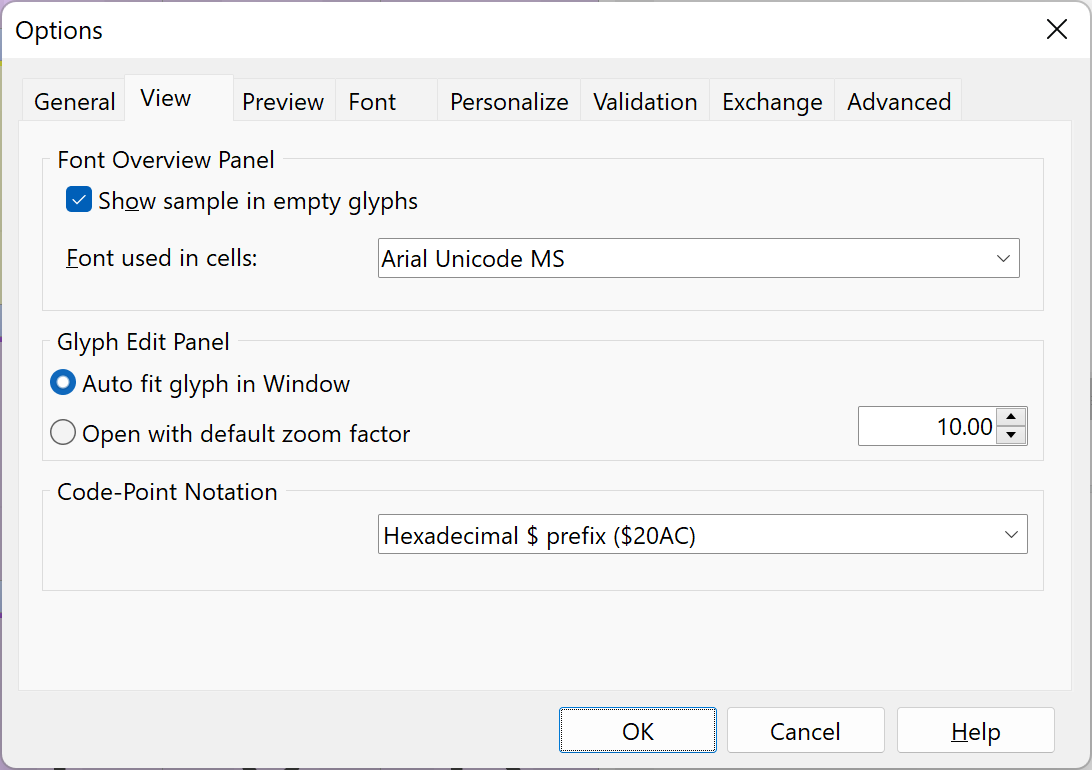
Show sample in empty glyphs
Will show a grey sample glyph for empty glyphs in the font panel. You can change the font to use by selecting one from the installed fonts list.
Glyph Edit Panel
Here you can set the way a Glyph panel will show the glyph
Code-Point Notation
Here you can set how code-points are shown: decimal (8364), or hexadecimal with a $ prefix ($20AC), with a 0x prefix (0x20AC), or without prefix (20AC).