The Transform panel contains powerful tools for editing glyphs. It can be toggled on and off using the F6 shortcut key, but can only be used while editing glyph outlines in the Glyph panel.
Both contours and components can be precisely repositioned, resized, scaled, rotated, or skewed. Nodes can be repositioned by precise increments.
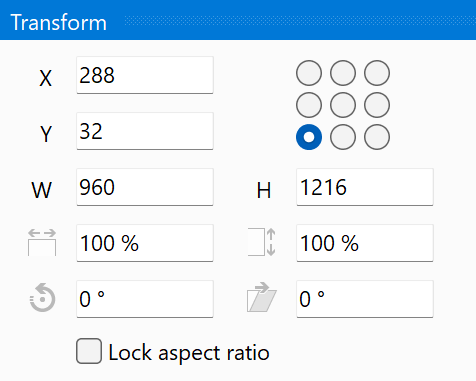
Move selection
You can use expressions within the X and Y position fields, which allows to make movement. For example, if a component is positioned at X = 50 and you want to move it by 150 units, then provide this text into the edit box: 50+150.
Lock aspect ratio
If checked, it preserves the relative width and height or horizontal and vertical scale.
Note: prior to version 12.0.0.2535 you could also set the glyph’s side-bearings. This is now solely available through the Glyph Properties panel.