You'll need: FontCreator, a variable font with a weight axis, and two glyphs to switch between — a default glyph plus an alternate (for example dollar and dollar.rvrn).
Feature variations let a variable font swap one glyph design for another over part of its design space. When interpolation alone can't get you from one shape to another — because the outlines aren't compatible — you use OpenType feature variations to substitute an alternate glyph under a specific axis condition. This font editor lets you wire that up visually in the OpenType Designer.
Introduction
Variable fonts let you interpolate a glyph's layer outlines using axis sliders. This works because all layers have compatible outlines: the same number of contours and matching points, differing only in coordinates. But what if you need to switch to a non-compatible outline for part of the design space — for instance, a different glyph design for narrower or bolder weights?
The problem
Imagine you want a dollar sign with a single vertical stroke to switch to an alternative design with a broken bar, suitable for bolder weights (for example when the weight axis is 650 or more). Interpolation can't bridge two incompatible outlines, so you need a different mechanism. This is where OpenType's feature variations come in.
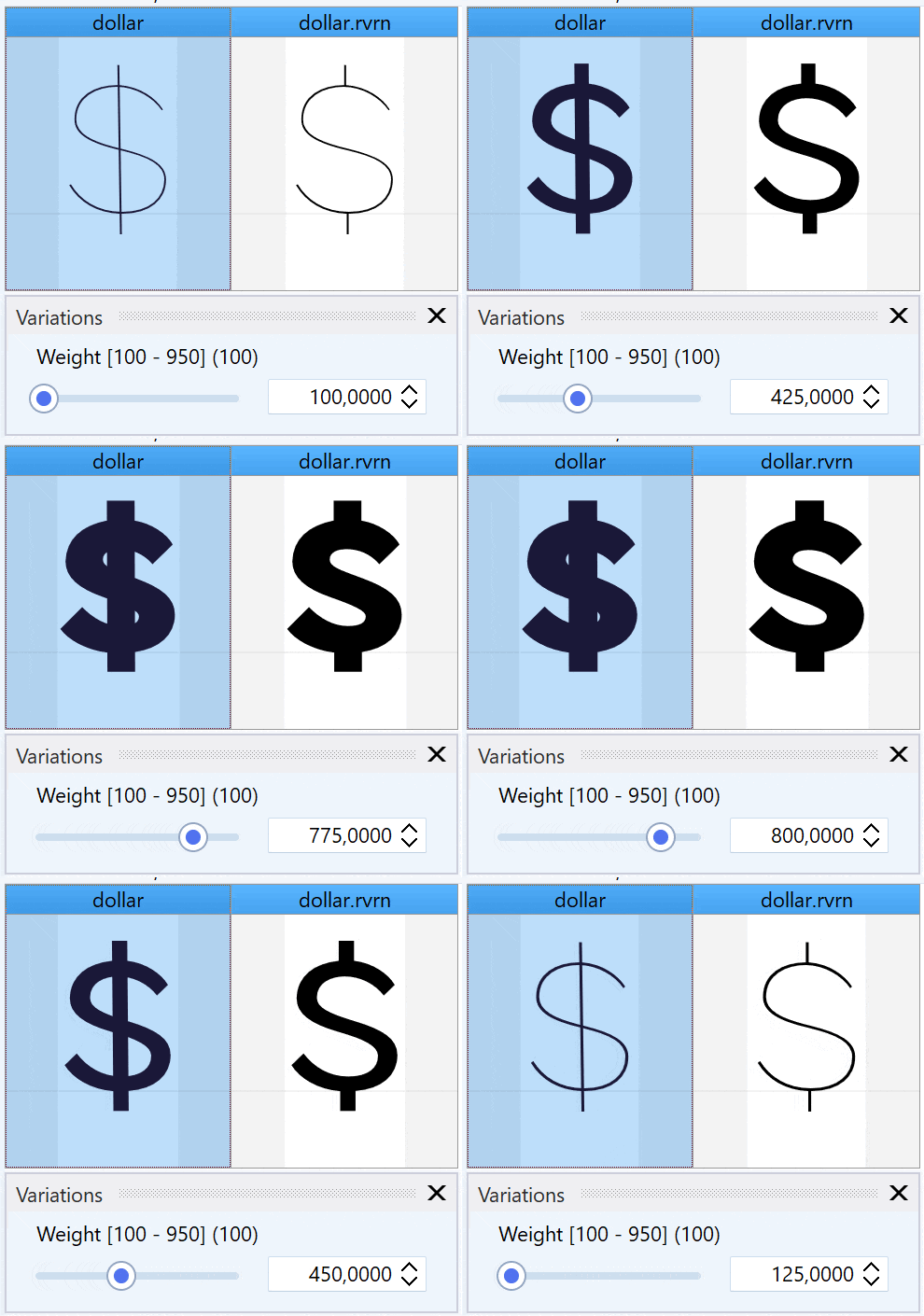
An animation of a dollar sign changing from a single-stroke design to a broken-bar design as the weight increases.
The solution: OpenType feature variations
The OpenType specification provides an elegant solution with the feature variations table, which lets you substitute a feature containing the default set of lookups with an alternate feature whose lookups apply only under specific conditions.
There is a specific feature for this called Required Variation Alternates (rvrn). According to the specification, all lookups within an rvrn feature must be single substitutions (GSUB type 1) — ligatures, contextual, or GPOS lookups are not allowed. However, some applications do not fully support rvrn as intended by the spec, which can cause issues.
> Note: If your feature variation using rvrn doesn't work in a target application, you are free to use other features. We suggest trying Required Ligatures (rlig) as an alternative. It doesn't have the same restrictions as rvrn, so it allows ligature lookups. Caveat: rvrn is applied automatically by the shaper based on design-space location, whereas rlig is a normal feature with different activation semantics and can be turned off — treat it as a workaround, not a spec-equivalent swap.
Step-by-step guide
1. Open the OpenType Designer
- Launch FontCreator.
- Make sure your font has a
dollarglyph as well as the alternativedollar.rvrnglyph. - Open the OpenType Designer.
2. Create a new lookup
- Select the root item named Lookups in the Features tree view on the left.
- Click the Add button (the green cross at the top).
- Choose Single substitution from the GSUB list on the right.
- Name this lookup
SingleSubstitution1and configure it to substitute the regular dollar sign with the alternative glyph.
3. Add features to the OpenType layout
- If your font has no Scripts, first select Scripts and click Add to add Default → Default; otherwise skip this step.
- Select the root item named Features and add an
rvrnfeature namedRequiredVariationAlternates1(leave it empty — no lookups added). - Add the feature to all available Script-Language combinations.
- Add a second
rvrnfeature to Features and name itRequiredVariationAlternates2. - Add the lookup
SingleSubstitution1toRequiredVariationAlternates2.

The OpenType Designer Features tree showing two rvrn features, one empty and one containing SingleSubstitution1.
4. Connect features with variation conditions
- In the Features tree view, select Variations (the last root item) and click the Add button (green cross at the top).
- In the Variation Conditions section, click Add and set the axis to Weight, minimum value to 650, and maximum value to 950.
- Add a Variation Feature Substitution, setting
RequiredVariationAlternates1as the Feature From andRequiredVariationAlternates2as the Feature To.

The Variations panel with a condition set on the Weight axis from 650 to 950 and a feature substitution from RequiredVariationAlternates1 to RequiredVariationAlternates2.
This is the complete feature code:
``` languagesystem DFLT dflt; languagesystem latn dflt; # Latin default
lookup SingleSubstitution1 { # GSUB lookup type SingleSubstitution sub dollar by dollar.rvrn; } SingleSubstitution1;
feature rvrn { # Required Variation Alternates } rvrn;
conditionset ConditionSet1 { wght 650 950; } ConditionSet1;
variation rvrn ConditionSet1 { # Required Variation Alternates lookup SingleSubstitution1; } rvrn; ```
Test the feature variation
- Test the setup by typing the dollar sign in the preview area.
- Optionally open the Proofing dialog (the second icon on the upper left) to see what is processed by the shaping engine.
- Use the Weight slider to confirm the dollar sign is substituted when the weight is 650 or more.
- Make sure the shaping engine is active by ticking the _shaper checkbox.
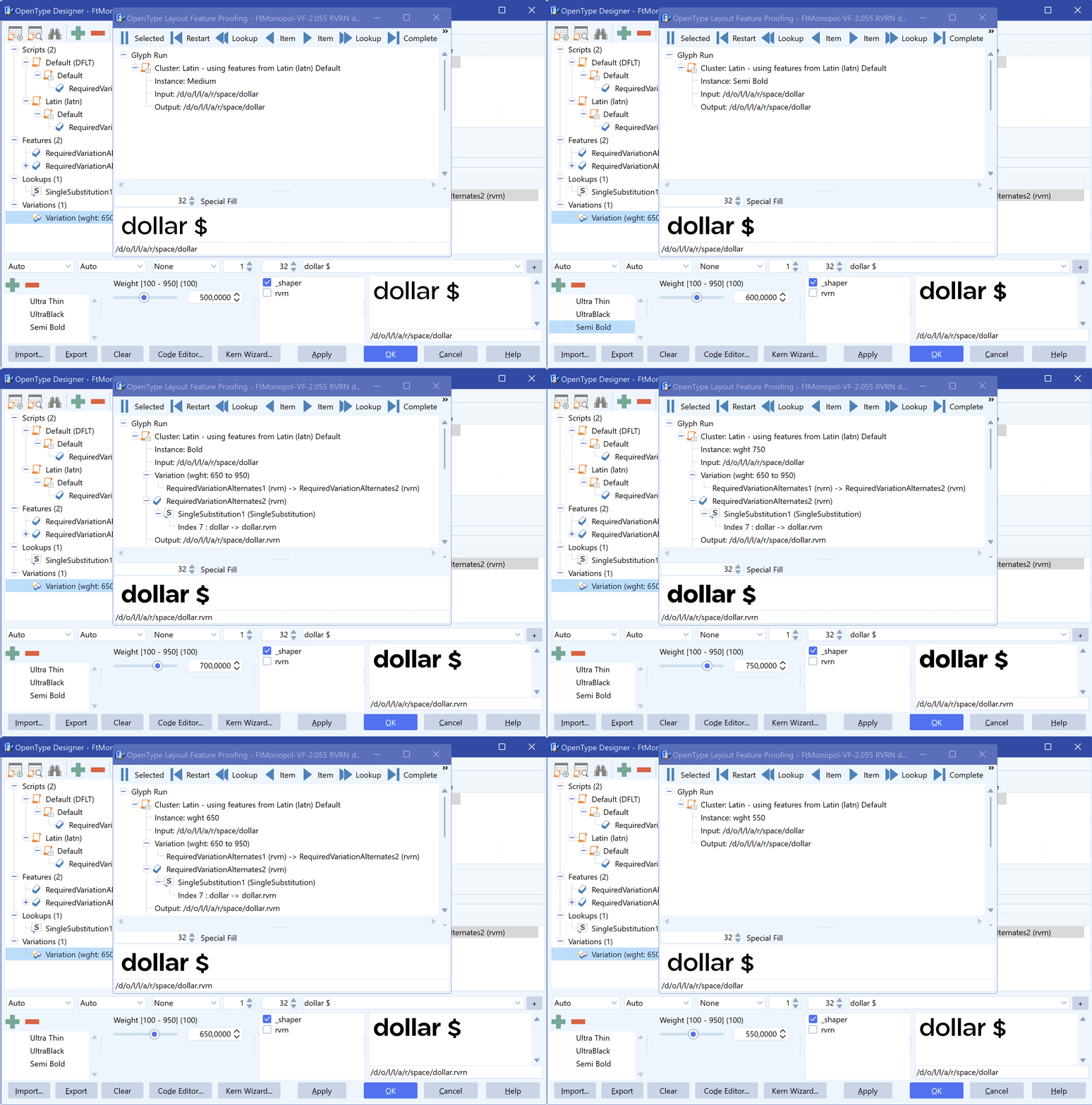
The preview area showing the dollar glyph switching to its alternate as the weight slider passes 650.
> Tip: Keep the empty rvrn feature (RequiredVariationAlternates1) in place. The substitution works by swapping the empty default feature for the populated one inside the condition range — without the empty feature there's nothing to swap from.
Conclusion
With this setup you can manage how glyphs change across different axis locations in your variable fonts, keeping your designs optimal across various styles and weights.
Credits: the font used in this tutorial is FtMonopol by Elron Bucai.
Troubleshooting
| Symptom | Likely cause | Fix |
|---|---|---|
| Alternate glyph never appears | Shaping engine not active | Tick the _shaper checkbox in the preview/proofing area |
| Substitution works in FontCreator but not in an app | Target app doesn't fully support rvrn | Try the same setup with the rlig feature instead |
| Nothing changes when crossing the threshold | Condition range or feature substitution misconfigured | Recheck the axis, min/max values, and the From/To features in Variations |
| Feature won't accept the lookup | Lookup isn't a single substitution (GSUB type 1) | rvrn allows only single substitutions; use rlig if you need ligature lookups |
Frequently asked questions
What is the rvrn feature for? Required Variation Alternates substitutes glyphs based on the current location in the variable font's design space. It's the OpenType mechanism for switching to an incompatible outline that can't be reached by interpolation.
Why two rvrn features instead of one? The variation works by replacing an empty default feature with a populated one inside the condition range. You need both: the empty RequiredVariationAlternates1 to swap from, and RequiredVariationAlternates2 (with the lookup) to swap to.
Can I switch glyphs on the width or slant axis too? Yes. Set the variation condition on whichever axis you need, with the min/max range where the alternate should apply.
rvrn isn't working in my target application — what now? Some apps don't fully support rvrn. Recreate the same single substitution using the Required Ligatures (rlig) feature, which has fewer restrictions and broader support.
Does the alternate glyph need a special name? The .rvrn suffix is a convention, not a requirement — any glyph name works as long as your single-substitution lookup points to it. The naming just keeps your work readable.
